Instagram's default settings prioritize Meta's data collection and advertising interests over your personal privacy. That is not a cynical take. It is simply how platform default settings are designed across virtually every major social media service. The defaults that benefit the platform are set on. The settings that benefit the user typically require manual activation.
Most users have never opened their Instagram privacy settings beyond switching to a private account. The settings below are specific, actionable, and each one has a real impact on either your privacy from other users or your data exposure to Meta's advertising systems. Here is every one you should change, with exact instructions on where to find it.
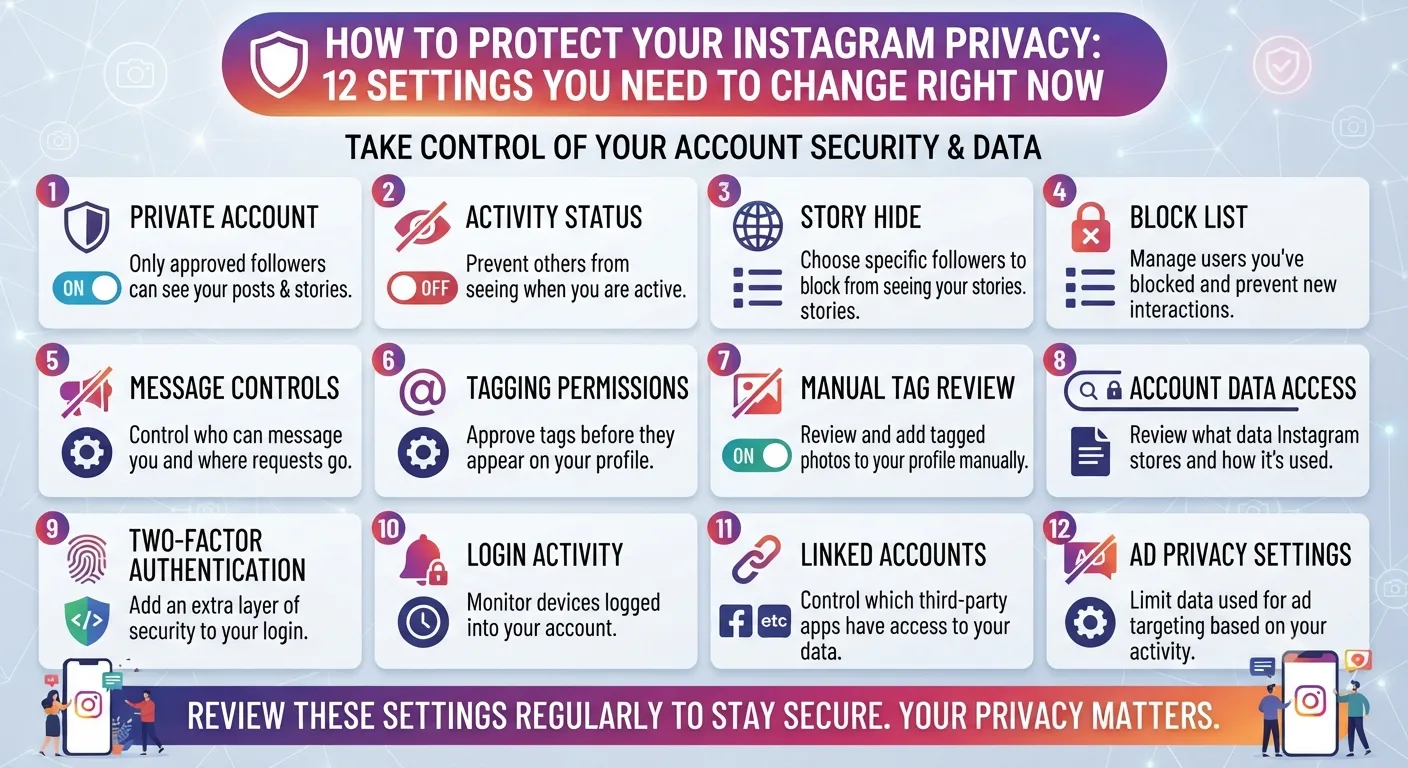
The 12 Settings to Change Now
Path: Settings and Privacy → Messages and Story Replies → Show Activity Status. Turn this off. With activity status on, anyone you follow or have messaged can see when you were last active on Instagram. Disabling it removes your active status from everyone's view, though it also means you cannot see others' activity status.
Path: Settings and Privacy → Privacy → Story. Disable "Allow Sharing to Messages" if you do not want followers forwarding your stories to others via DM. Also disable "Allow Resharing to Stories" to prevent others from sharing your stories to their own stories through the share button.
Path: Settings and Privacy → Privacy → Tags. Enable "Manually Approve Tags" so that photos you are tagged in do not automatically appear in your tagged section. This gives you full control over what public content is associated with your profile. Under Mentions, change the setting from "Everyone" to "People You Follow" or "No One".
Path: Settings and Privacy → Your Activity → Off-Meta Activity. This is one of the most impactful privacy settings on Instagram. Tap "Manage Future Activity" and disable future off-Meta activity tracking. This stops Meta from connecting data about your behavior on other websites and apps to your Instagram advertising profile. Also tap "Clear Previous Activity" to disconnect historical data that has already been collected.
Path: Settings and Privacy → Ads → Ad Topics. Review and restrict ad topics that feel invasive, including alcohol, parenting, political content, financial products, and health and wellness if you prefer Instagram not to use your browsing behavior to target you with these categories. This does not eliminate ads but reduces their relevance to sensitive personal topics.
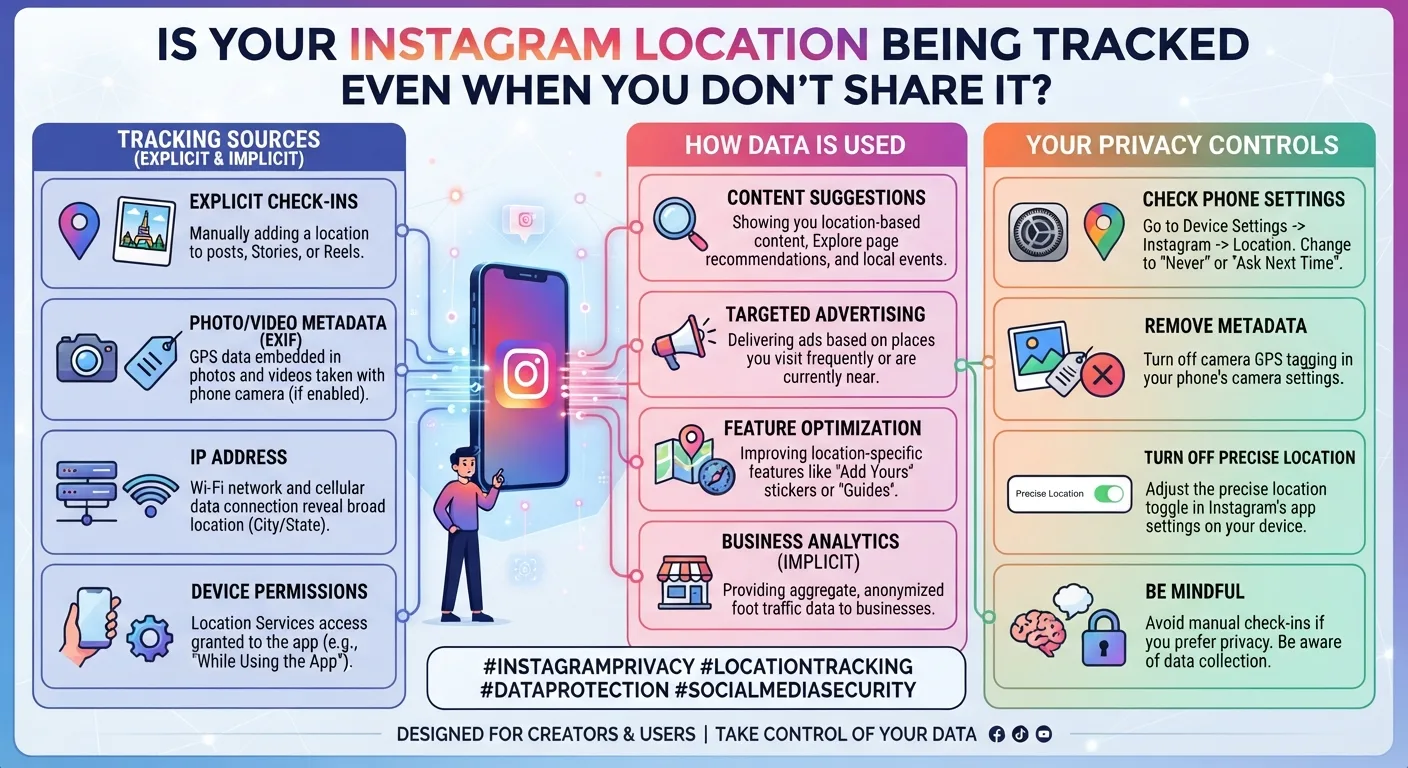
Path: Your phone's Settings app → Apps → Instagram → Permissions → Location. Change location access to "Only While Using the App" or "Deny". Instagram infers your approximate location from your IP address regardless, but revoking GPS-level location access removes the precision location data from its advertising profile. Only grant location access when you specifically need it for a location-tagged post.
Path: Settings and Privacy → Privacy → Messages. Change "Message Requests" settings to limit who can send you direct messages. Setting non-followers to message requests rather than primary inbox reduces unsolicited contact. You can also enable message filtering to automatically move potentially offensive messages to a filtered folder.
Path: Settings and Privacy → Privacy → Story → Close Friends. Build and maintain your Close Friends list as a control mechanism for sensitive or personal story content. Anything you do not want the full public to see should go to Close Friends rather than your main story. This is particularly relevant for anyone who posts personal updates alongside professional or brand content.
Path: Settings and Privacy → Accounts Center → Password and Security → Two-Factor Authentication. Enable two-factor authentication using an authenticator app rather than SMS. SMS-based 2FA is vulnerable to SIM-swapping attacks. An authenticator app like Google Authenticator or Authy provides significantly stronger account security. This protects your account from unauthorized access even if your password is compromised.
Path: Settings and Privacy → Privacy → Suggested Accounts. Disable the option that allows Instagram to suggest your account to others when they connect their contacts or Facebook account. This prevents your Instagram profile from being surfaced to people who have your phone number but whom you may not want to connect with on the platform.
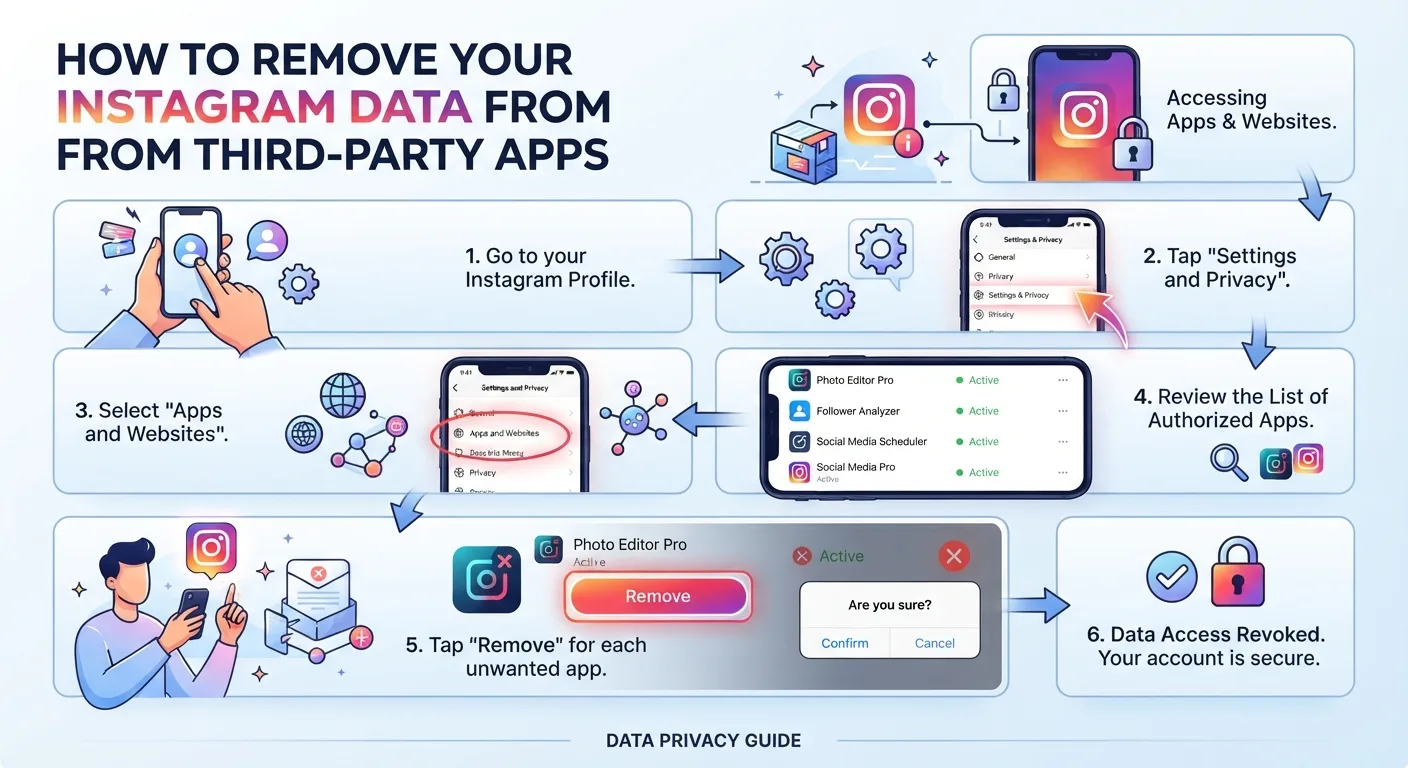
Path: Settings and Privacy → Accounts Center → Connected Experiences → Connected Apps and Websites. Review every app and website that has been authorized to access your Instagram account. Remove any connections you do not actively use or do not recognize. Old app authorizations remain active indefinitely until manually revoked, meaning apps you used years ago may still have access to your account data.
Path: Settings and Privacy → Content Preferences → Sensitive Content Control. Adjust this to "Limit" rather than the default setting. This reduces the amount of potentially sensitive content Instagram surfaces in your Explore page and Reels feed. It also signals to Instagram's content classification system what content categories are appropriate for your account's audience, which can affect how your own content is classified and distributed.
How Long Does This Take?
Working through all 12 settings takes approximately 20 to 30 minutes the first time. Most settings only need to be configured once and remain in place unless Instagram resets them through an app update, which happens occasionally and is worth checking for when you update the app.
Settings That Instagram Has Changed Versus Previous Years
Instagram's settings menu is reorganized periodically and some settings have moved since earlier guides were written. As of July 2026, the Accounts Center is where most cross-Meta settings live, including the Off-Meta Activity controls and two-factor authentication. Settings that previously lived directly in Instagram's settings panel have progressively migrated to the unified Accounts Center across Facebook and Instagram.
If a setting path listed above does not match exactly what you see in your app, searching the setting name in Instagram's search bar within the settings menu will take you directly to the relevant option regardless of menu reorganization.
Key Takeaways
- Instagram's default settings are optimized for Meta's data collection and advertising, not for user privacy. Most meaningful privacy controls require manual configuration.
- The Off-Meta Activity setting is the single highest-impact change: it disconnects your Instagram ad profile from your broader internet behavior.
- Two-factor authentication using an authenticator app protects your account from unauthorized access and should be considered essential security hygiene.
- Third-party app access granted years ago remains active until manually revoked. Review and clean up old connections through Accounts Center regularly.
- Activity status, tag review, and story sharing controls protect your visibility from other users rather than from Meta itself and are worth configuring even for users less concerned about data privacy.
- All 12 settings can be configured in 20 to 30 minutes and most only need to be set once.
Frequently Asked Questions
Does turning off activity status hide you from everyone on Instagram?
Yes. Disabling activity status hides your active status from everyone you follow and everyone you have messaged. The setting applies universally and cannot be configured to hide from specific people while remaining visible to others.
Will clearing Off-Meta Activity stop Instagram from tracking me on other websites?
Clearing previous Off-Meta Activity disconnects the historical data from your ad profile. Enabling the "Manage Future Activity" off toggle stops future off-Meta data from being connected to your Instagram profile for ad targeting. However, the Meta Pixel on third-party websites continues to collect data about your visits. The change affects how that data is used for targeting rather than stopping the collection entirely.
Does enabling two-factor authentication slow down logging in?
Slightly. When logging in on a new device or after a session reset, you will need to enter a six-digit code from your authenticator app in addition to your password. Instagram can be set to remember trusted devices so you are not prompted for the code every single time. The minor login friction is worth the significant security benefit.
Can I stop Instagram from suggesting my account to people who have my phone number?
Yes. The Suggested Accounts setting under Privacy allows you to disable the feature that surfaces your account to people who have your contact information synced to Facebook or Instagram. Disabling this prevents your profile from being recommended to contacts you have not chosen to connect with on the platform.
How often should I review my Instagram privacy settings?
A full privacy settings review is worth doing every three to six months. Instagram updates its settings menu and occasionally resets or adds new options that require manual configuration. Checking after major app updates is also recommended since feature launches sometimes introduce new default settings that affect privacy.