Zapier is a simpler, more accessible automation tool than Make.com for creators who want to connect ChatGPT to their Instagram workflow without a steep learning curve. While it offers less flexibility for complex multi-step scenarios, its ease of use makes it the right starting point for most solo creators looking to automate their daily content pipeline.
Here is a complete, practical walkthrough of building this automation from scratch, even if you have never used Zapier before.
What This Automation Actually Does
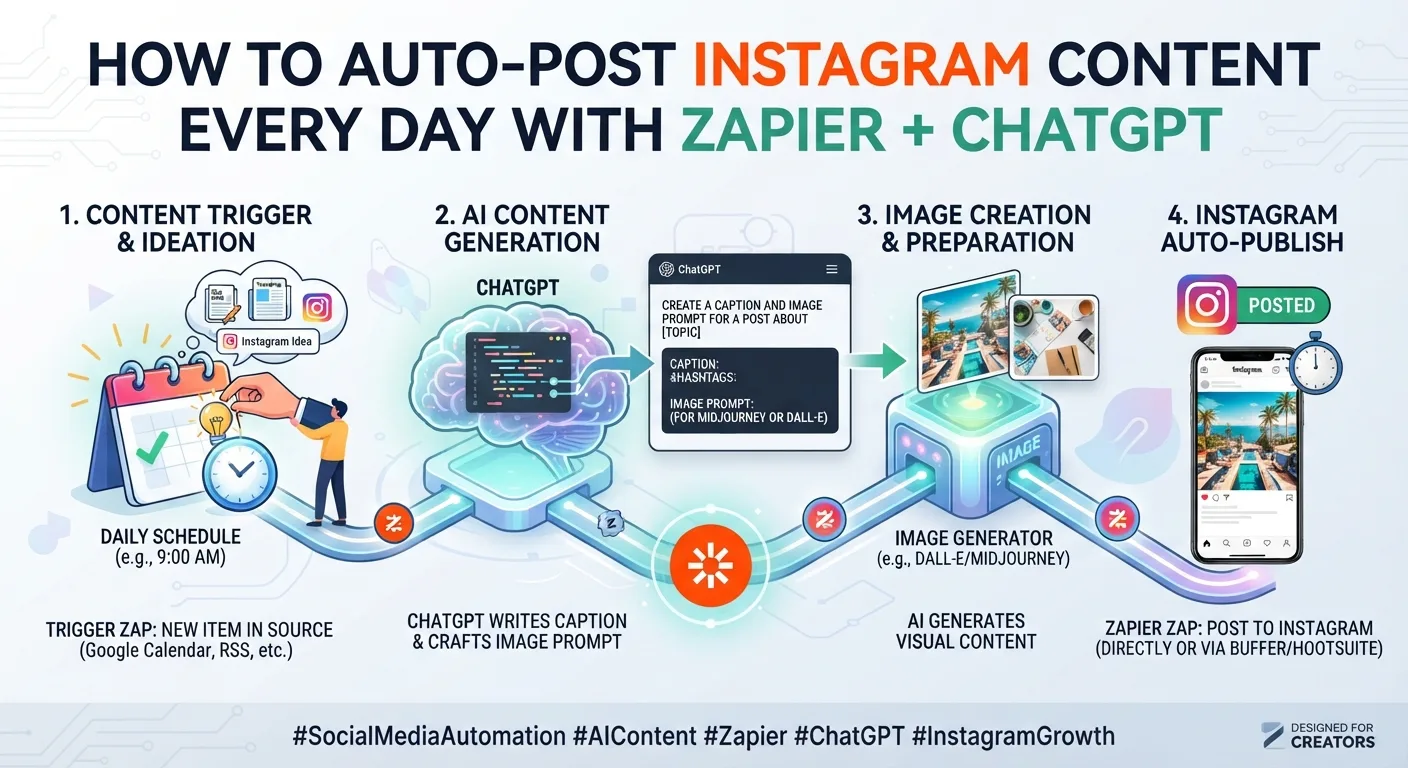
The complete pipeline takes a content topic or brief you provide, sends it to ChatGPT via API to generate a caption, and delivers the result to your scheduling tool ready for review and publishing. This removes the manual step of opening ChatGPT, copying a prompt, generating a caption, and pasting it into your scheduler for each individual post.
Input Source
Google Sheet with topic and pillar for each planned post
Trigger
New row added to the sheet by you
AI Generation
Zapier sends the brief to ChatGPT via API for a caption draft
Output
Caption written back to the sheet, ready for review and scheduling
Publish
Approved content sent to Buffer or Later for scheduled posting
Step-by-Step Setup Guide
Building the Zapier Automation
- 1Create a Google Sheet with columns for Date, Content Pillar, Topic Brief, Generated Caption, and Status. This becomes your content command center where you input ideas and review AI output.
- 2Sign up for a Zapier account and start a new Zap. Select Google Sheets as your trigger app, with the trigger event set to "New Row" in your content spreadsheet.
- 3Add an action step using the OpenAI (ChatGPT) integration. Configure the prompt to reference the Topic Brief and Content Pillar fields from your trigger row, along with your brand voice instructions written directly into the Zapier action configuration.
- 4Add a second action step to write the generated caption back into the Generated Caption column of the same row in your Google Sheet, and update the Status column to "Ready for Review."
- 5Optionally, add a Slack or email notification action so you receive an alert when a new caption has been generated and is ready for your review.
- 6Test the Zap with a sample row to confirm the full pipeline works correctly before turning it on for live use.
Writing the ChatGPT Prompt Inside Zapier
The quality of your automated captions depends entirely on the prompt configuration within the OpenAI action step. Rather than a generic instruction, build a detailed system prompt that includes your brand voice guidelines directly in the Zapier configuration, since this prompt runs identically for every row without you re-entering context each time.
A well-configured prompt template includes your brand voice description, target audience, typical caption length, and a consistent call-to-action style, with the Topic Brief and Content Pillar fields from your spreadsheet dynamically inserted for each specific post. This front-loaded configuration is what makes the automation valuable, since it applies your full brand context to every single generated caption without manual repetition.
Connecting to Your Scheduling Tool
Once captions are generated and you have reviewed them in your Google Sheet, the final step connects to your actual posting tool. Buffer and Later both have native Zapier integrations that allow you to create a new scheduled post directly from a Zapier action, pulling the approved caption and a corresponding image or video file reference from your workflow.
Most creators choose to keep a manual approval step between AI generation and actual publishing, updating a Status column to "Approved" only after reviewing each caption, which then triggers the final Zap connecting to the scheduling tool. This human review checkpoint prevents unreviewed AI content from publishing automatically, which is a safer default for most brand and creator accounts.
Handling Images and Video in the Automation
Zapier's automation handles text generation well but image and video assets typically need to be prepared separately and referenced by file name or link within your Google Sheet. A practical workflow involves batch-producing your visual content in advance, uploading it to a shared Google Drive folder, and referencing the specific file name in your content spreadsheet so the final scheduling action can pull the correct asset alongside its AI-generated caption.
Common Setup Mistakes to Avoid
Configuring a vague or generic prompt in the OpenAI action step produces generic output regardless of how sophisticated the rest of the automation is. Invest real time in the prompt configuration, since this single step determines the quality ceiling of everything the automation produces.
Skipping the manual review checkpoint and connecting AI generation directly to auto-publishing removes your ability to catch errors, off-brand output, or factual mistakes before they go live on your account. Even a well-configured automation benefits from a quick human review step before content reaches your audience..
Growth
Key Takeaways
- Zapier connects a content topic source, typically a Google Sheet, to ChatGPT's API for automated caption generation, then to a scheduling tool for publishing.
- The quality of automated output depends entirely on the detail and specificity of the brand voice prompt configured within the Zapier OpenAI action step.
- A manual review checkpoint between AI generation and final publishing is strongly recommended to catch errors or off-brand content before it reaches your audience.
- Image and video assets typically need to be prepared and organized separately, referenced by file name within your content spreadsheet for the automation to pull correctly.
- This automation saves approximately 45 minutes to an hour per week on caption drafting for a daily posting cadence, with consistency of brand voice application as an additional benefit.
- Zapier is more accessible than Make.com for creators new to automation, though it offers less flexibility for complex multi-step workflows as content operations scale.
Frequently Asked Questions
Do I need to know how to code to set up this Zapier automation?
No. Zapier is designed as a no-code visual automation tool. The setup described uses Zapier's standard app integrations and configuration interface, requiring no programming knowledge. The most technical part is configuring the OpenAI API connection, which Zapier guides you through with a straightforward setup process.
Is it safe to auto-publish Instagram content without reviewing it first?
This is not recommended for most creators and brands. AI-generated content can occasionally include factual errors, off-brand phrasing, or content that does not fit the specific context you intended. A manual review checkpoint before final publishing, even a quick one, significantly reduces the risk of problematic content reaching your live account.
How much does this Zapier automation cost to run?
Zapier's free tier supports a limited number of monthly automation runs, sufficient for testing but likely insufficient for a daily posting cadence over a full month. The Starter paid plan, typically around twenty dollars monthly, comfortably supports a daily content automation workflow. OpenAI API usage for caption generation adds a small additional cost, typically a few dollars monthly for reasonable caption volume.
Can this automation work with Claude instead of ChatGPT?
Yes, Zapier supports Anthropic's Claude API as an integration option alongside OpenAI. The setup process is similar, configuring a detailed brand voice prompt within the Claude action step rather than the OpenAI step. Many creators prefer Claude specifically for the caption quality and brand voice consistency it produces, as discussed in other guides in this series.
What happens if the AI generates a caption I do not like?
Since the recommended workflow includes a manual review step before scheduling, you simply edit the generated caption directly in your Google Sheet before marking it as approved, or regenerate it by re-triggering that row through Zapier if you have configured a manual retry option. The human review checkpoint exists specifically to catch and correct situations where the AI output does not meet your standards.